 Moescience Smart Library
Moescience Smart Library User Guide
A library system for schools: manage books, students, borrowing and returns, fines and reports — on phone or computer, even offline.
Start readingDownload / Print PDF1. Getting started
Moescience Smart Library (MSL) manages a school library: books and their copies, students and other members, borrowing and returns, fines, and reports for the librarian, education officers and the administrator.
Logging in
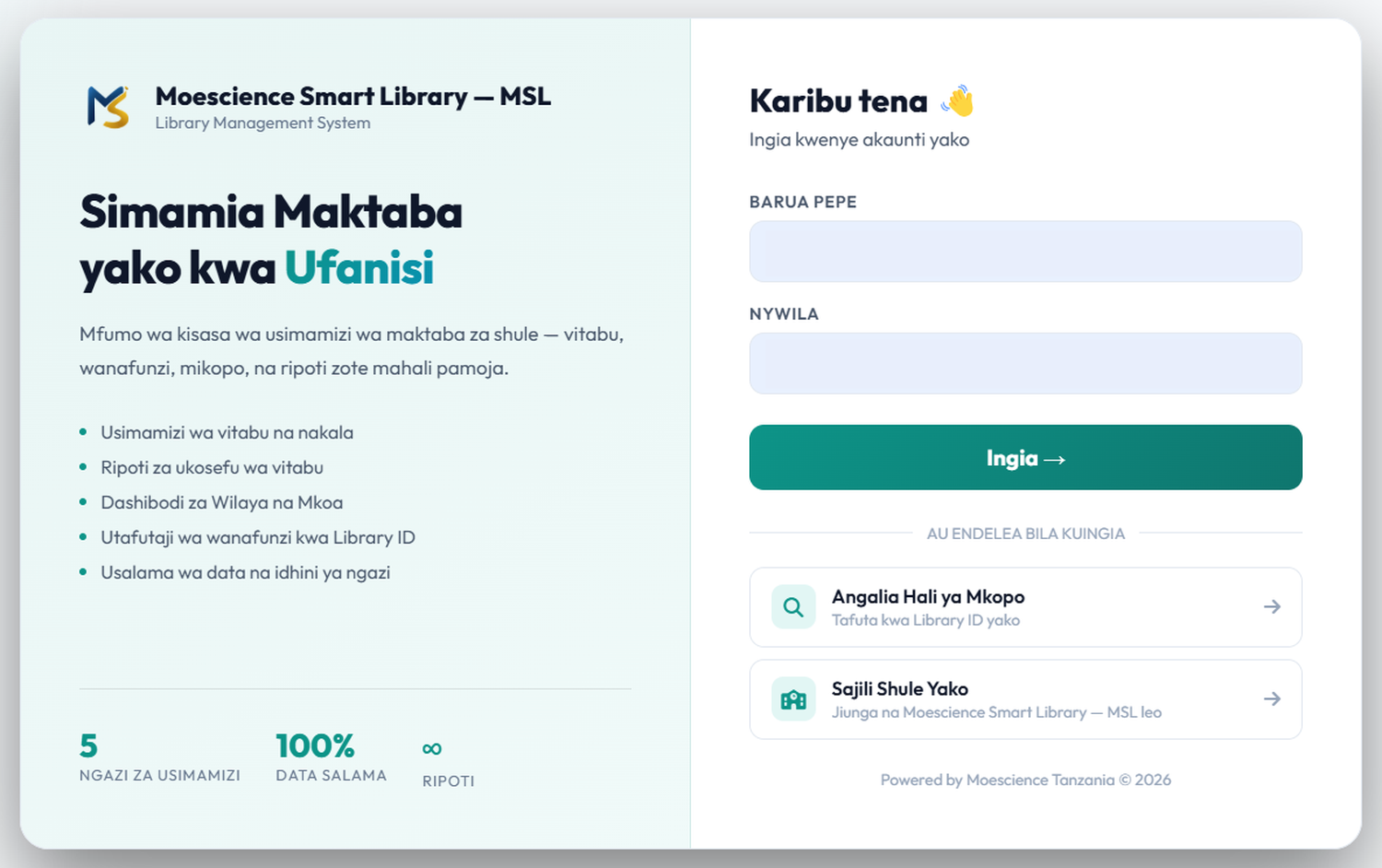
- Open library.moescience.com in your browser.
- Enter the email and password you were given, then press Log in.
- After 5 wrong passwords in a row you are blocked for 15 minutes to protect the account. Wait, then try again.
assets/guide/ingia.pngWho sees what
| Role | What they do |
|---|---|
| Librarian | Runs their own school library: students, members, books, borrowing/returns, fines, reports. |
| District / Regional / National officer | Sees a read-only dashboard of government schools in their area: book status and shortages. |
| Admin | Manages all schools, users, plans, regions and system settings. Can also 'view as school' to see what a librarian sees. |
Menu
On a computer the menu is on the left; on a phone it is at the bottom and the More button opens the full menu. Each user only sees the features that apply to them. The librarian menu has:
| Menu | Purpose |
|---|---|
| Dashboard | Library summary and charts. |
| Students / Library Members | Students, and teachers/staff/others. |
| Books | Books and their copies. |
| Borrows | Lending, returns, history and lost books. |
| Library Cards | Library cards (printing). |
| Vilivyochelewa | Overdue books. |
| Takwimu | Detailed usage analytics. |
| Foleni ya Vitabu | Book reservations. |
| Bingwa wa Kusoma | Top readers (leaderboard). |
| Kumbukumbu | Record of everything done (audit log). |
| Shortage Report | Book shortage by class. |
| Print Reports | Printable reports. |
| Student Lookup | Page for students to check their own status. |
| Mipangilio | Library settings. |
2. Students and members
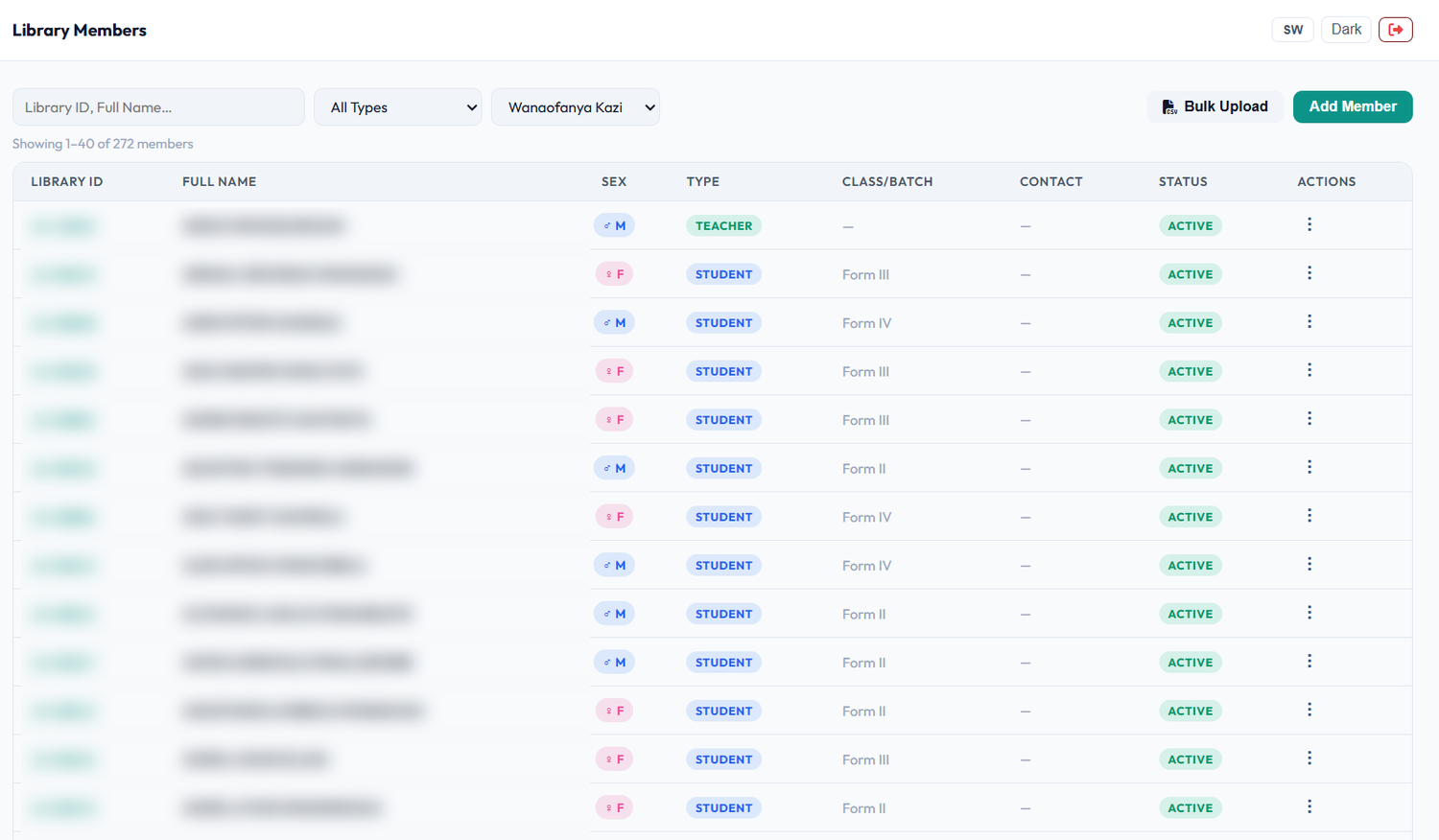
Before lending, a person must be registered. Students have their own page; teachers, staff and outsiders are registered as Members.
Adding a student
- Go to Students and press the add button.
- Fill in full name, class and the Library ID (library number).
- Save. The student can now borrow.
Adding a teacher, staff member or outsider
- Go to Members and add a new member.
- Choose the type (teacher, staff or external), then enter the name and library number.
assets/guide/wanafunzi.pngLibrary card
The Library Card page lets you create and print cards showing the student's number so you can borrow quickly by scanning.
3. Books and copies
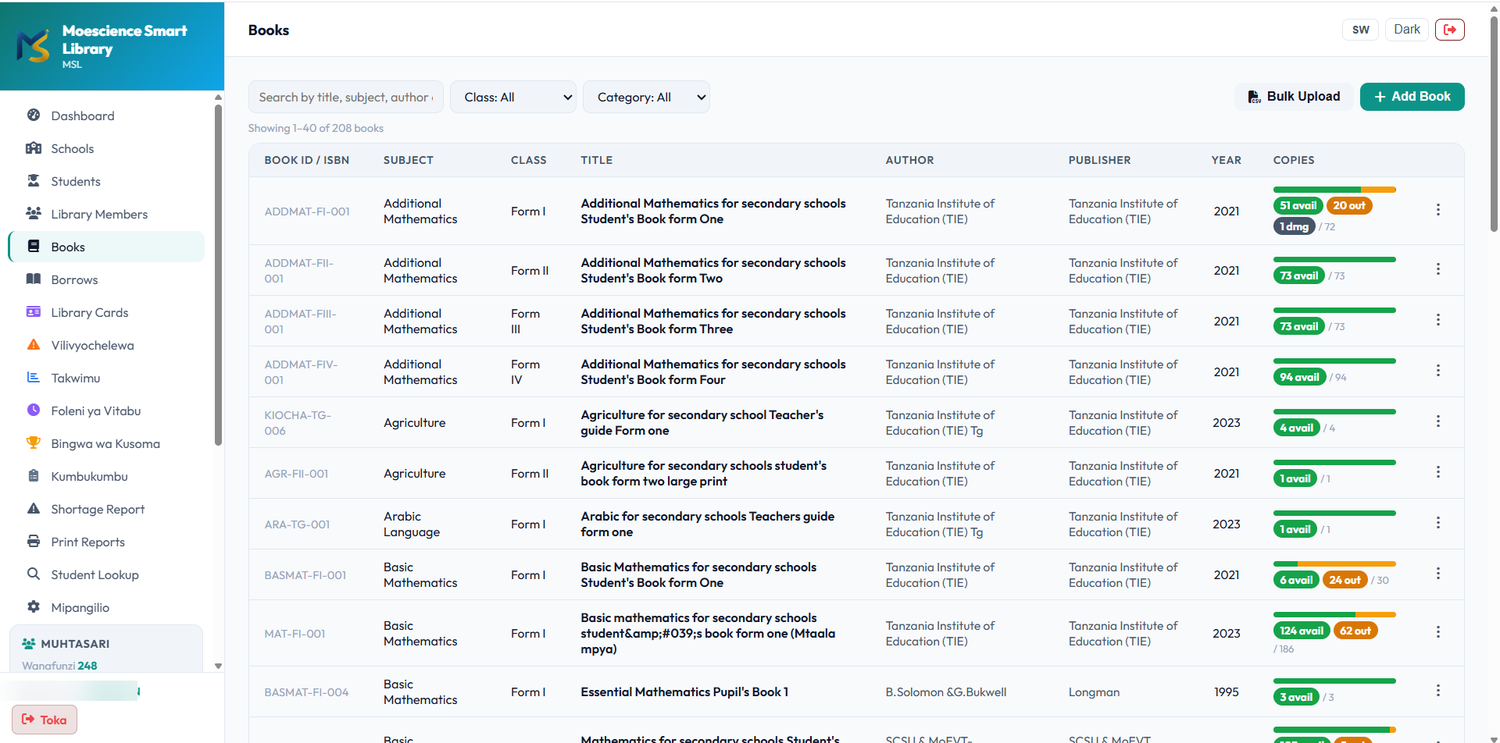
Every book has one or more copies. Each copy has a unique code, for example CIV-FIV-001-03, so you always know exactly which copy was borrowed and by whom.
Adding a book
- Go to Books and press add book.
- Enter title, author, ISBN (if any), category and number of copies.
- Save. The system creates all the copies and their codes.
For many books at once, use the Batch feature (bulk import).
assets/guide/vitabu.pngCopy statuses
| Status | Meaning |
|---|---|
| Available | On the shelf, can be borrowed. |
| Borrowed | With a student/member. Changes automatically when a book is borrowed or returned. |
| Damaged | Cannot be borrowed until repaired. |
| Lost | Not available; stays so until found. |
Shortages
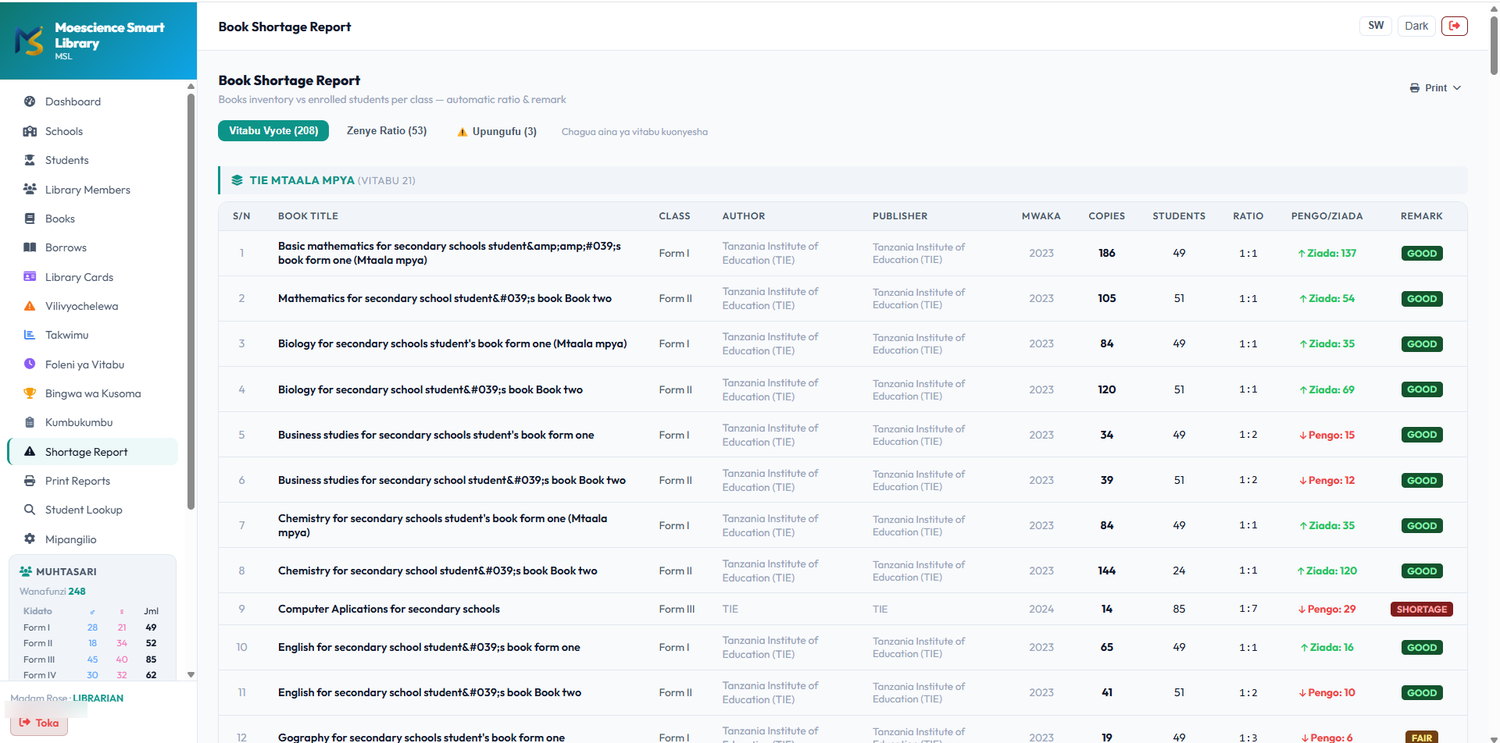
The Shortage Report compares the number of copies with the number of students in a class (the ratio) so you can see subjects and classes that lack books. Tabs: Vitabu Vyote (all books), Zenye Ratio and Upungufu (shortage). Each book is marked GOOD, FAIR or SHORTAGE, and you can print with the Print button.
assets/guide/upungufu.png4. Borrowing and returning
Lending a book
- Go to Borrows and press New Borrow.
- Find the student/member by name or number, or scan their card.
- Pick the book and copy (or scan the copy code). You can add up to 10 books at once.
- Confirm. The due date is set automatically.
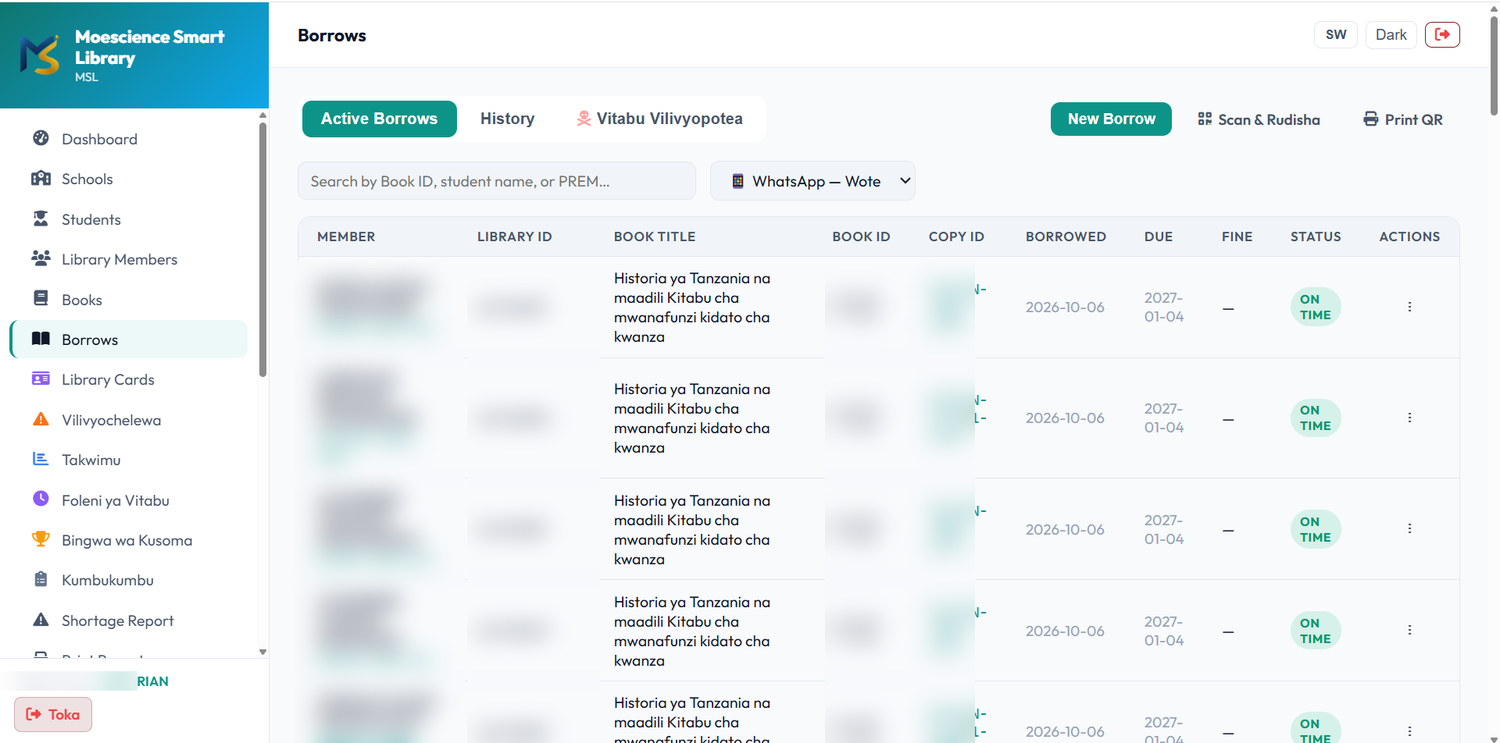
assets/guide/kukopa.pngAt the top there are three tabs: Active Borrows, History and Vitabu Vilivyopotea (lost books). Buttons: New Borrow (lend), Scan & Rudisha (return by scanning) and Print QR. You can search by name, Library ID or book, and filter by WhatsApp status.
| Rule | Details |
|---|---|
| Loan period | Set in Settings (Mipangilio). The due date appears in the Due column of each loan. |
| Limit | A person cannot hold more than 10 unreturned books. |
| Copies | One copy cannot be borrowed by two people at the same time. |
Returning a book
- In Borrows, find the loan and choose Return from the actions menu (⋮) at the end of the row, or use Scan & Rudisha.
- Choose the condition: excellent, good, fair, damaged, severely damaged, or lost.
- Confirm. The copy goes back to 'available' (or 'damaged/lost' depending on the condition you chose).
Lost books
If a book is lost, use the Lost button on the loan record. Later, if it is found or the fee is paid, use Resolve: choose 'paid' (the book stays lost) or 'returned' (the book goes back into stock).
Scan & Go and QR
With your phone camera you can scan a student card and copy code to borrow and return quickly. Allow camera access when asked.
5. Overdue books and fines
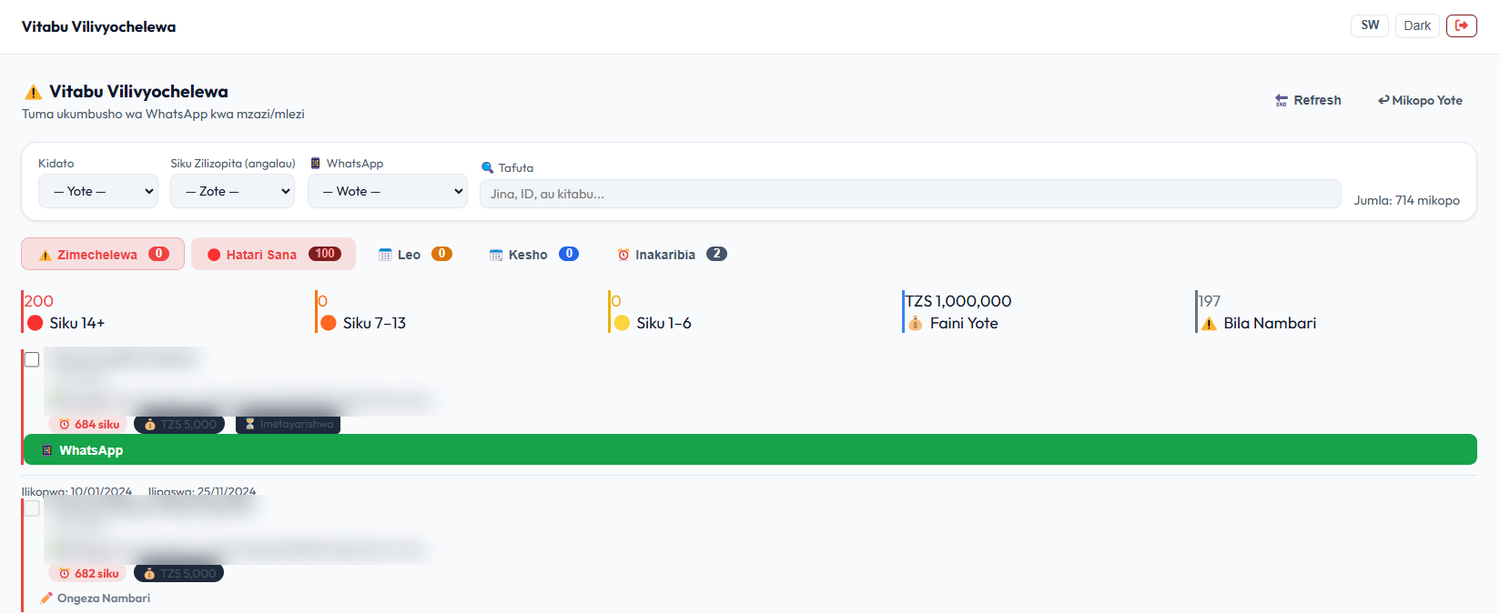
The Overdue page lists books past their due date.
| Item | Details |
|---|---|
| Fine per day | The amount per late day is set in Settings (Mipangilio). |
| Fine cap | The fine for one book never exceeds TZS 5,000. |
| Calculation | The system shows a live fine for books not yet returned and stores it when the book is returned. |
At the top of the page are filters: Kidato (class), Siku Zilizopita (angalau) (days overdue, at least), WhatsApp and a Tafuta (search) box for name, ID or book. The tabs show Zimechelewa (overdue), Hatari Sana (critical), Leo (today), Kesho (tomorrow) and Inakaribia (due soon). Summary cards count records by days overdue (14+, 7–13, 1–6), Faini Yote (total fines) and records with no parent phone (Bila Nambari); those have an Ongeza Nambari (add number) link so WhatsApp can be used.
Marking a fine as paid
- Open the loan record with the fine.
- Press Paid. If you made a mistake, set it back to Unpaid.
- To change the amount, use edit fine.
assets/guide/faini.pngWhatsApp messages (Premium)
On the Premium plan and above you can prepare a reminder message. The system opens WhatsApp with the message ready; you press send, then come back and confirm Sent.
6. Reservations
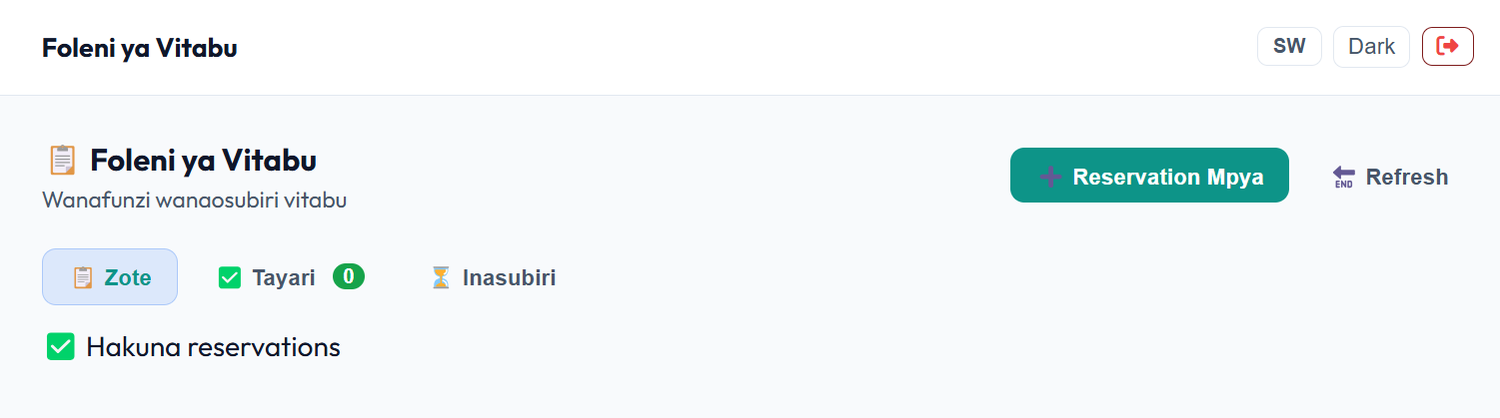
When a book is not available (all copies are borrowed), a reservation can be placed. The queue is respected; when the book comes back, the first in line is marked 'ready' so the librarian can notify them.
assets/guide/maombi.png7. Reports and analysis
| Page | What it shows |
|---|---|
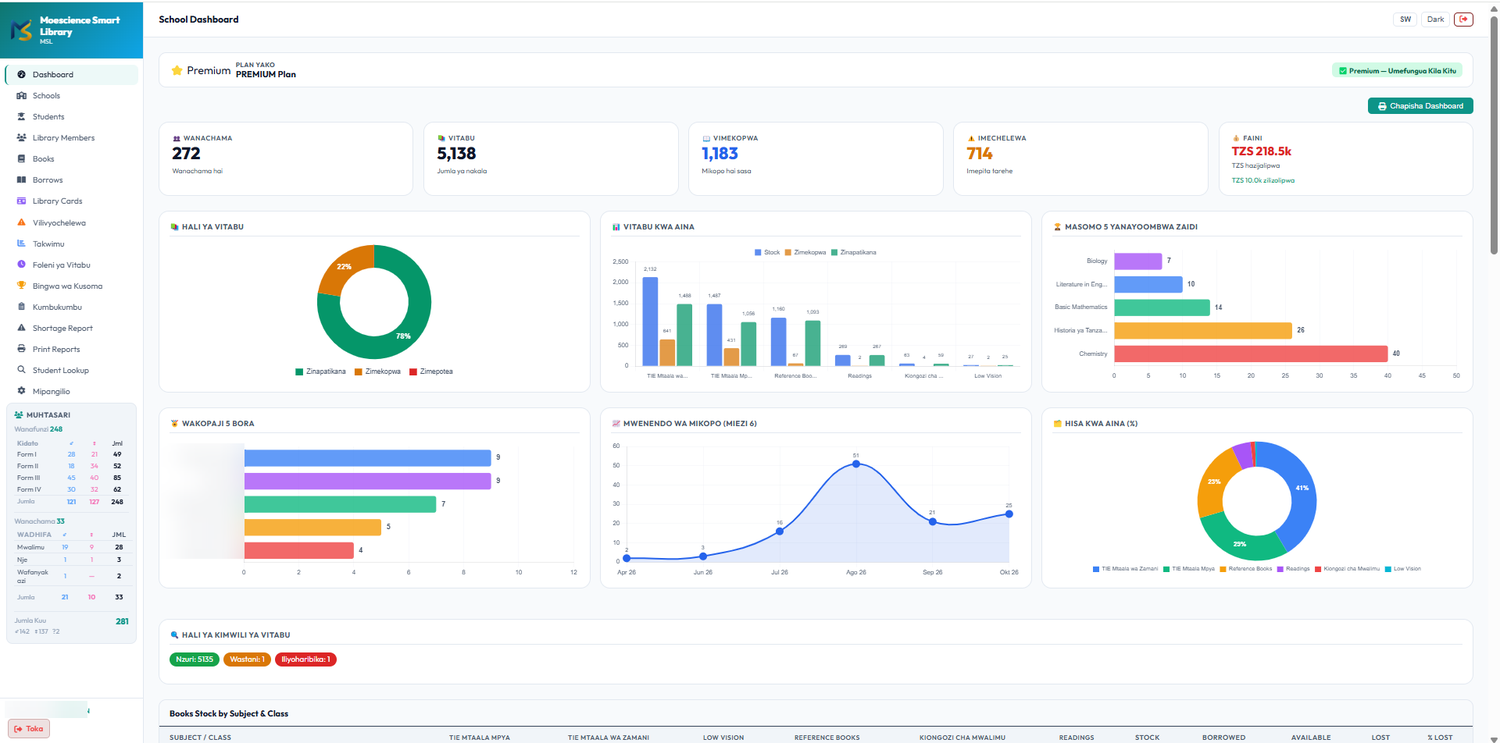
| Dashboard | Cards for Members, Books, On loan, Overdue and Fines; charts for book status, most requested subjects, top 5 borrowers and a 6-month borrowing trend. A Print Dashboard button. |
| Analytics | Most-read books, classes and usage trends. |
| Leaderboard | Students who read the most — to encourage reading. |
| Shortage report | Book shortage versus student numbers. |
| Audit log | A record of everything done: who lent, returned or changed what, and when. |
| Print reports | Ready-to-print reports for offices and inspections. |
assets/guide/ripoti.pngStudent status page (Student Lookup)
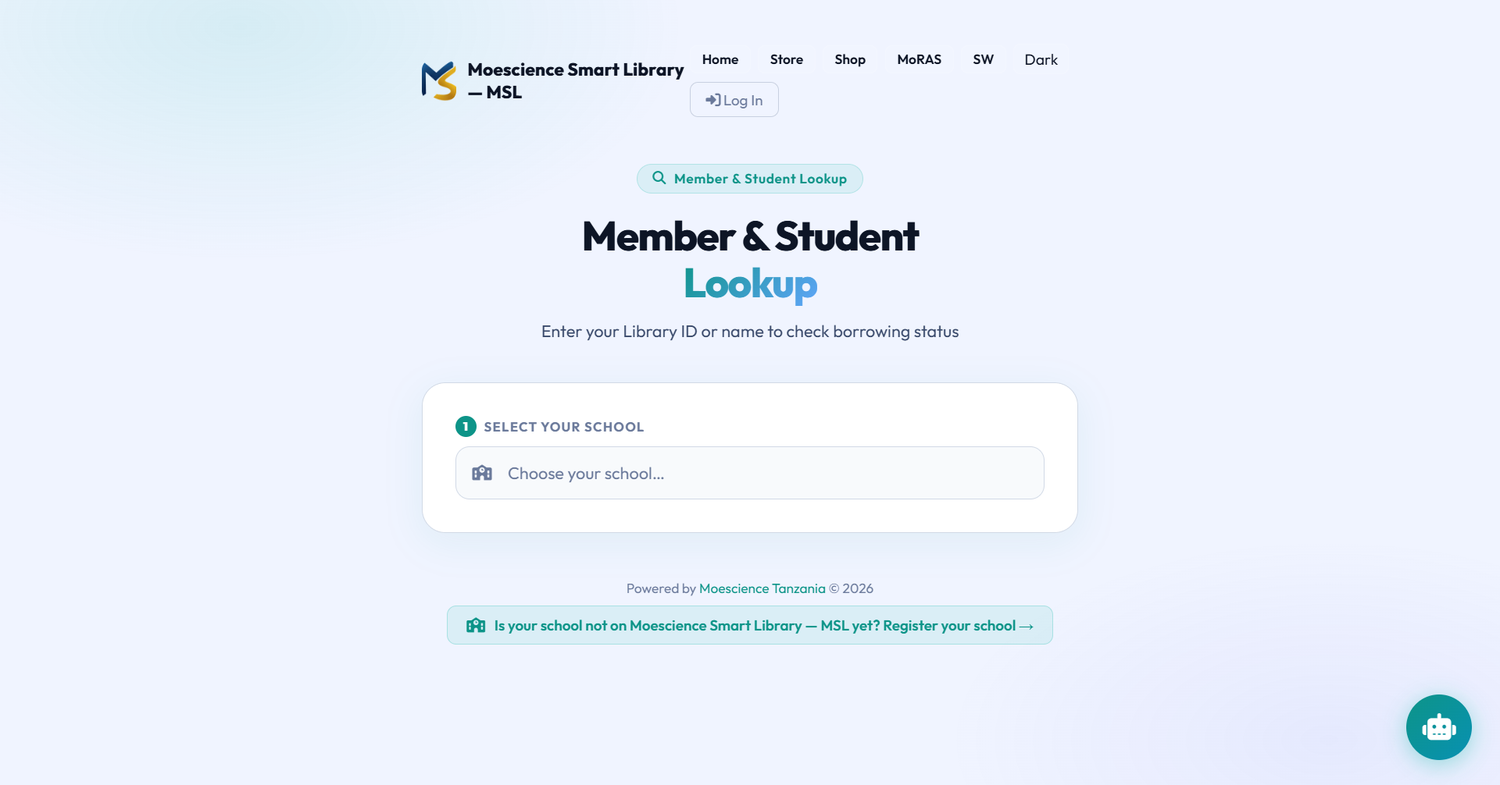
A student can check the books they borrowed and their fines without logging in: open Check your borrowing status on the login page, choose the school, then enter their Library ID. If they search by name, the system shows their name with a hint, and they then enter the full Library ID to confirm.
assets/guide/angalia-hali.png8. Working without internet
The system can keep working even when the network is down (for school accounts).
- Log in with internet at least once so the system gets offline permission.
- If the network drops, keep lending and returning as usual; records are saved on the device.
- When the network returns, records are sent automatically. You can also press 🔄 Sync at the top.
Offline permission expires after a while; if so, log in again with internet.
9. Education officers
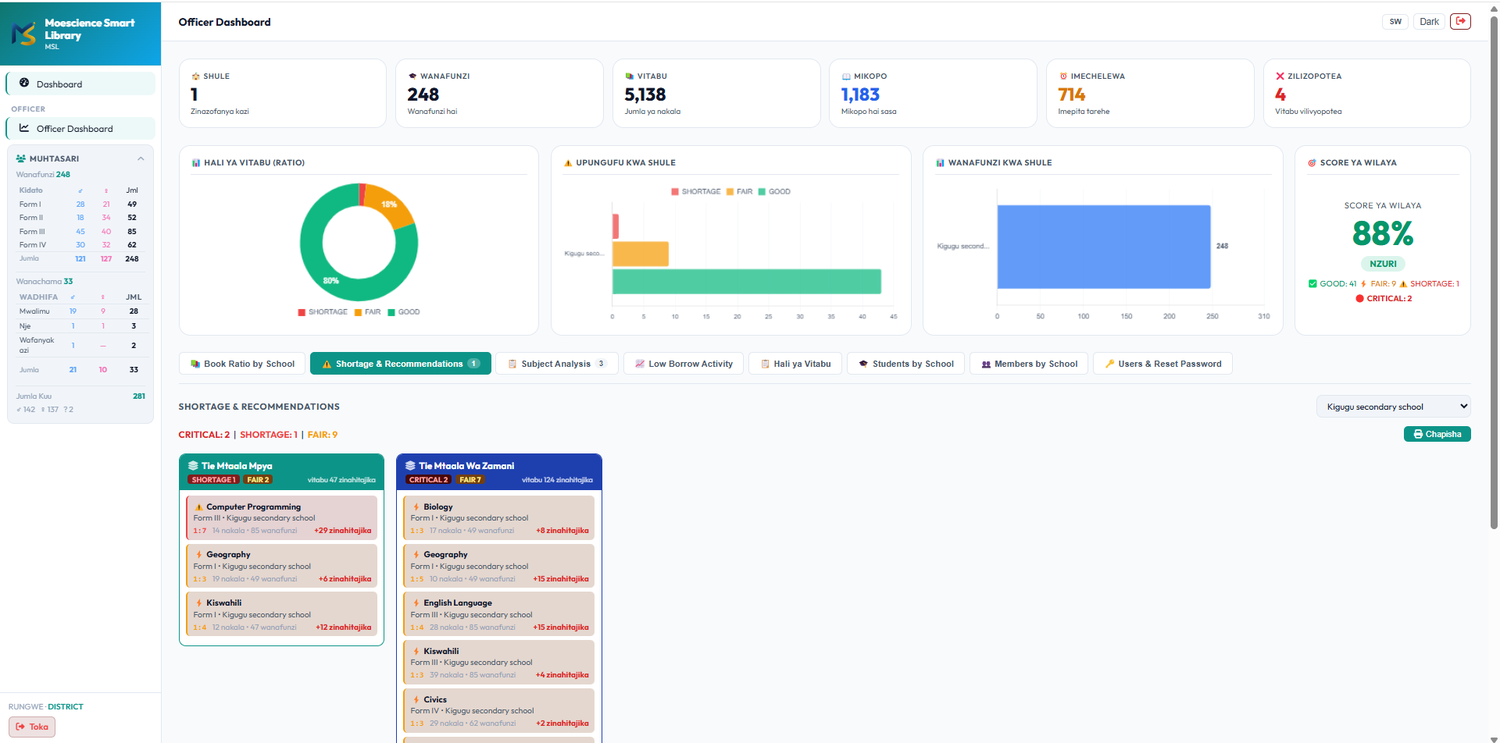
District, regional and national officers log in with their own account and see the Officer Dashboard: government schools in their area, book status and shortages. They cannot change school data; it is view and analysis only.
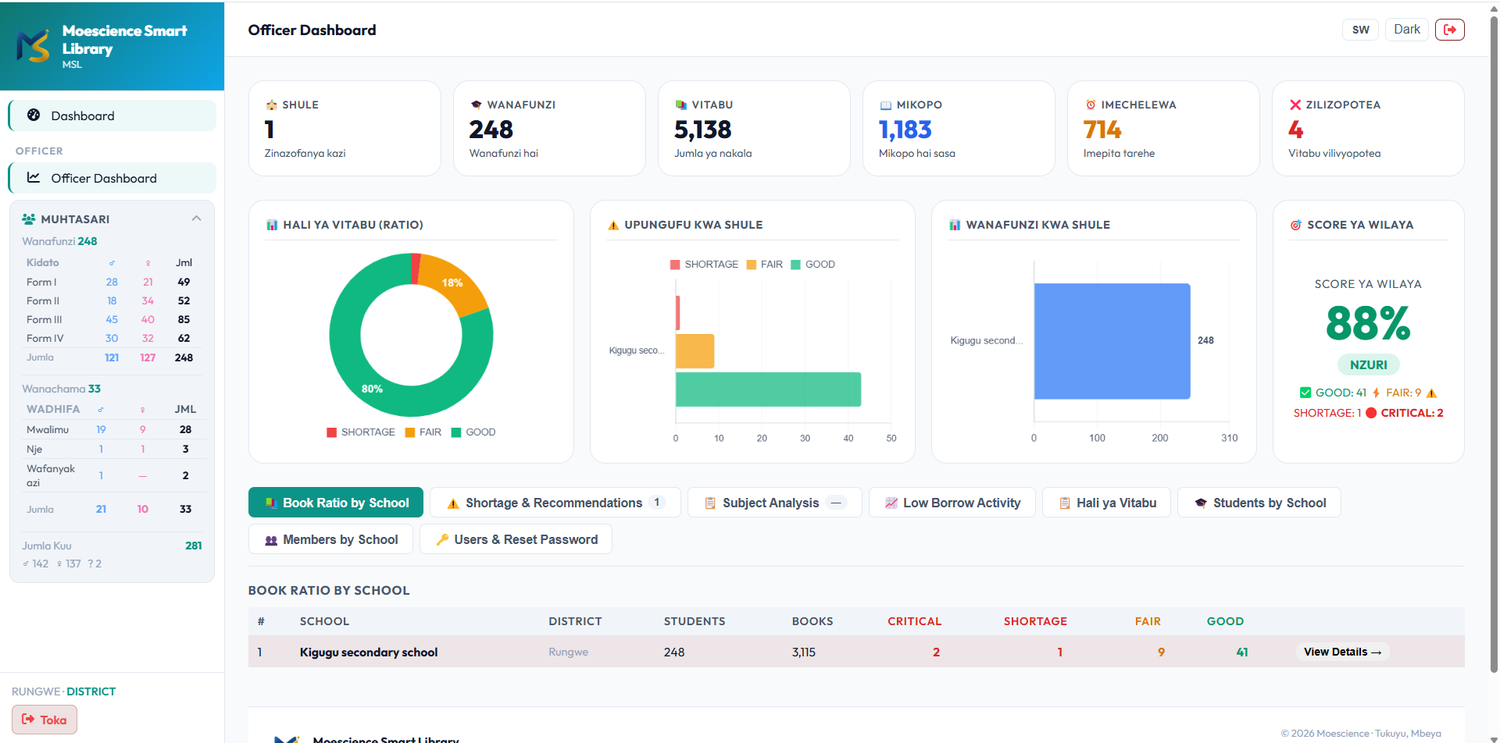
assets/guide/afisa.pngBelow the charts there are tabs: Book Ratio by School, Shortage & Recommendations, Subject Analysis, Low Borrow Activity, Hali ya Vitabu, Students by School, Members by School and Users & Reset Password.
assets/guide/afisa2.png10. For Admins
| Page | Purpose |
|---|---|
| Schools | Register, edit, approve and delete schools. Deleting a school also deletes its books, students and records — be careful. |
| Users | Create librarian and officer accounts, reset passwords. |
| Plans | Upgrade/downgrade a school's plan and record payments. |
| Regions & districts | Manage the list of areas. |
| Subjects | Subjects used in analysis. |
| Settings | Loan period, fine per day and other system settings. |
An admin can use View as school to see the system as a given school's librarian, in order to help them.
11. Plans and subscription
A new school starts with a trial period. After that it needs a paid subscription according to its plan.
| Plan | Extra features |
|---|---|
| Basic | Books, borrowing/returns, students and members, library card, QR, offline, basic reports. |
| Standard | Basic + fine management, advanced analytics, leaderboard, audit log. |
| Premium | Standard + AI assistant, WhatsApp messages, school branding, priority support. |
| Institution | Premium + officer dashboard, multiple schools, district reports. |
12. Security and good practice
- Never share your password. Give each librarian their own account so the audit log shows who did what.
- Log out when you finish, especially on a shared computer.
- If you forget your password, ask the Admin to set a new one.
- 5 wrong password attempts block you for 15 minutes.
- Do a physical shelf check regularly and compare with the system; if you find a difference, correct the status of that copy.